
How to live stream a podcast, step by step
A podcast can be live. The show goes out as a stream while you record, listeners tune in from their podcast app, and the same session can become a normal episode afterwards. This guide covers what a live podcast is, what you need, and the steps to run one.
Can a podcast be live?
Yes. A podcast feed can carry a live episode next to the recorded ones. The feed uses a Podcasting 2.0 tag called podcast:liveItem. It tells an app when the session is planned, where the stream is, and whether it is live right now.
That is different from streaming on a video site and uploading the recording later. With a live item, people who already follow the show see the live episode in the app they use for every other episode. They do not need a second account or a link from you.
Which apps play a live podcast?
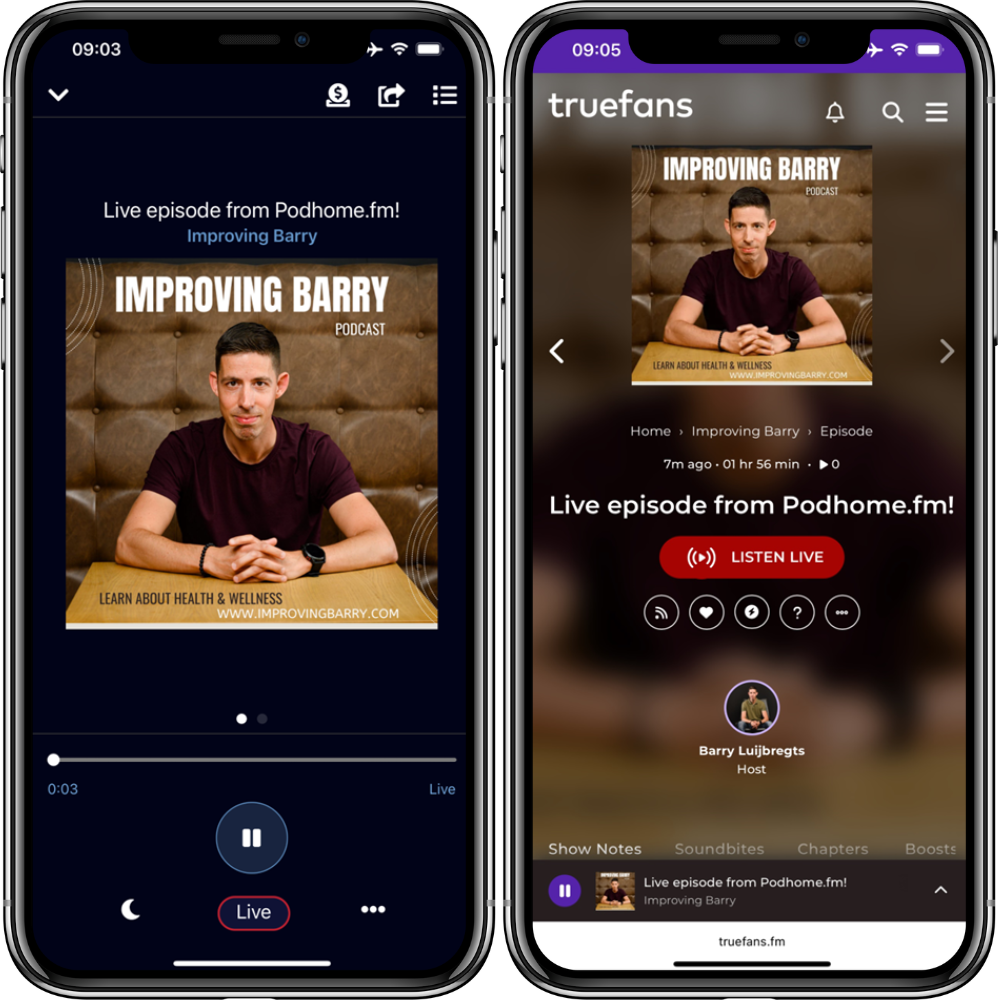
Apps that support the Podcasting 2.0 live item. Fountain, PodcastGuru, Podverse, and TrueFans are four of them, and the Podcast Index keeps a list of apps. Not every podcast app supports a live item. Tell listeners which app to open before the first live show.
What you need to live stream a podcast
- Your normal podcast gear. The microphone and interface you already record with.
- Broadcast software. Anything that can send audio to an Icecast server, such as OBS.
- A streaming server. An Icecast or Shoutcast server takes the audio from your software and hands it to listeners. You can run your own. Podhome includes an audio-only Icecast server in the plan, so there is nothing to install.
- A podcast host that writes the live item. The host puts the live episode in your feed and tells apps when you start and stop.
The steps, in order
1. Create the live episode
In Podhome, create a new episode and choose Configure Live Episode. Fill in the title and notes as you would for any episode. A Live settings section appears on the episode.
2. Pick the streaming server
Turn on Use the Podhome streaming server, or enter the Broadcast URL of your own Icecast or Shoutcast server. The episode settings show the server, port, mount, and encoder type to copy into your broadcast software.
3. Set the start and end time
Apps show the episode as upcoming for those times. If you would rather not announce it in the feed, turn on Hide from feed until live. The episode then appears when you go live.
4. Connect and test
Start streaming from your broadcast software, then open the Broadcast URL in a browser. If you hear yourself, the stream reaches the server. Do this before every show.
5. Go live
Click Go Live! in Podhome. Podhome updates the feed and sends a podping, which is how apps learn within moments that the episode is live. When you finish, click End Live. That sends the matching signal. Ending a session is final. You cannot restart it.
6. Turn the session into an episode
Record your own copy while you stream and upload it afterwards, the way you publish any episode. Podhome also has a switch that records the stream for you. It is experimental and off until you turn it on, so keep your own recording until you trust the result. If the live episode has audio, Publish automatically when finished publishes it once processing is done. If processing fails, Podhome does not publish and emails you instead.
Can I live stream a video podcast?
Yes, with your own video stream. If you already stream video in HLS format, enter that HLS URL as the Broadcast URL. Some podcast apps show the video and others play only the audio, so test it first. The Podhome streaming server itself is audio only.
What if I already stream to other platforms?
Keep doing that. If your broadcast software sends one stream to several places, add the stream URL to the live episode. Your podcast feed becomes one more place where the same show is live.
Can a recorded episode go out as live?
Yes. Upload the audio, and choose to play it as the live session. It starts at the scheduled time or when you click Go Live, and the session ends when the file ends. This suits a premiere, or a week when you cannot be at the microphone.
What does it cost?
Live podcasting and the Icecast server are part of the one Podhome plan, $15.99 a month or $185 a year. There is no separate live plan. The trial is 30 days of that same plan.
Before the first show
- Run a private test session from start to finish, including End Live.
- Start with intro music. A stream takes a few seconds to settle.
- Tell listeners the time and which apps play the live episode.
- Live listeners are not counted in download analytics. There is no reliable way to count them yet.
The full reference, including the API calls for a Go Live button on a stream deck, is in the live podcasting docs. The feature summary is on Live podcasting.
New to Podhome? Start the 30-day trial and set up a test live episode.