
How to embed a podcast on your website
You can put a podcast on your own website by pasting a small piece of code, called an embed code, into the page. The code loads a player from your podcast host. Visitors press play without leaving your site, and new episodes appear in the player without you touching the page again.
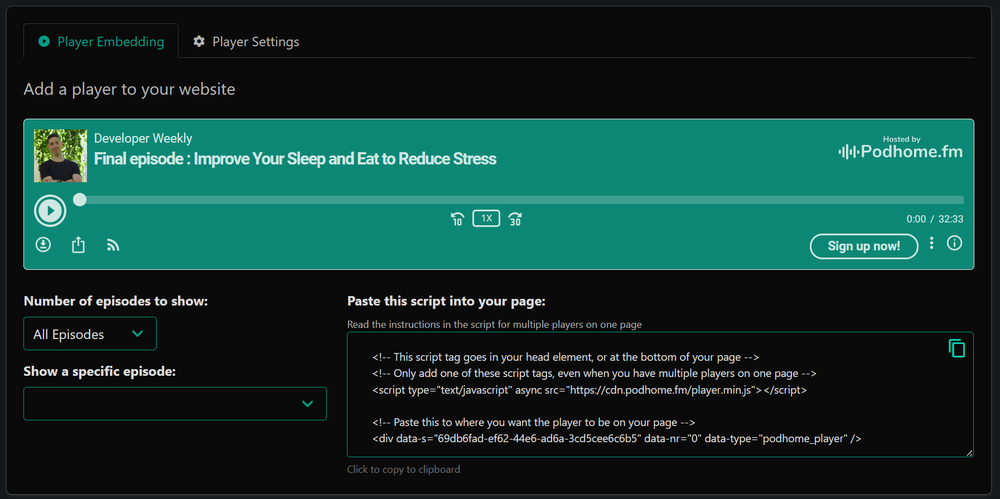
Can I put a podcast on my website?
Yes. The audio stays with your podcast host. Your website only shows a player that points at it. That means you do not upload audio files to your website, and there is one copy of each episode to manage.
What you need
- A podcast host that gives you an embed code. Most do. On Podhome it is part of the plan.
- A website you can edit. Any site builder that lets you add custom HTML or an embed block works.
The steps, in order
1. Decide what the player should show
There are three useful choices, and each suits a different page.
- The latest episode. Good for a home page. The player updates itself every time you publish.
- A set number of recent episodes. Good for a podcast page, for example the latest five.
- One specific episode. Good for a blog post or show notes page about that episode.
2. Copy the embed code
In Podhome, open the Player page and go to the Player embedding tab. Pick one of the three options above and copy the code that is shown. It has two parts: a script line that loads the player, and a short line that marks where the player appears. If you put more than one player on a page, the script line goes in only once.
3. Paste it into your page
Open the page in your website editor and add a block that accepts code. Paste the embed code there and publish the page.
- WordPress: add a Custom HTML block.
- Squarespace: add a Code block.
- Wix: add an Embed HTML element.
- Webflow: add an Embed element.
- A site you code yourself: paste it into the HTML where the player should appear.
Some site builders only allow custom code on a paid plan. If you cannot find a code block, check that first.
4. Check it on a phone
Open the published page on a phone and press play. The Podhome player is responsive, so it should fit the width of the page. If it looks cut off, the block you pasted it into has a fixed size. Make that block full width.
Make the player match your site
On the Player settings tab in Podhome you can change how the player looks and what it offers.
- Set the player color.
- Turn the control buttons on or off.
- Turn the download, share, and subscribe buttons on or off.
- Add a call to action button with your own text and link, for example to a newsletter signup.
What about live episodes?
If the player is set to show your latest episodes, a live episode shows up in it automatically when you broadcast. Visitors can tune in on your website. How to run a live show is in How to live stream a podcast.
If you do not have a website yet
You may not need to embed anything. Every show on Podhome gets its own website with episode pages, search, transcripts, chapters, and links to listening apps. You can point your own domain at it. See podcast websites.
Common questions
Do I have to upload my audio to my website?
No. The player loads from your podcast host, so your website does not store or serve the audio files.
Do I need to update the page for each new episode?
Not if the player shows the latest episode or a number of recent episodes. Only a player set to one specific episode stays on that episode.
The reference for every setting is in the embeddable player docs. The feature summary is on Embeddable podcast player.
New to Podhome? Start the 30-day trial. The player is included in the one plan, $15.99 a month or $185 a year.